PDF/Acrobat

Acrobat finds a new home on the Web

Adobe Acrobat 9 & Acrobat.com

Remember when hardly a week went by in the early months of 2008 without some sort of Apple product announcement? The past few weeks, Adobe has been doing its best Apple imitation, with a slew of product news aimed at creative professionals.

Macworld has an article covering the latest offerings from Adobe, Acrobat 9 and the companion Web site, Acrobat.com

Not all PDFs are created equal

AcrobatNot all PDFs are created equal—just ask any prepress manager. With Adobe Acrobat offering so many versions of PDF documents, and so many options for creating them, it's hard to know what you need to do to prepare a truly press-ready PDF.

Layers Magazine has a great article on creating perfect pre-press ready PDFs for print designers.

For what it's worth, I stick with PDF/X-1a for my PDF output. PDF/X-1a creates a "dumb" PDF that will work on virtually all PDF-capable RIPs by removing all transparency, embedding fonts and basically offering the least amount of options in your PDF file.

To brush-up on the various PDF formats, you can take a look at this post I made a while back which features a brief description of each format.

white box problem in PDFs

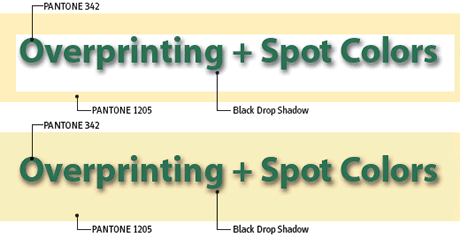
"I have an issue with drop shadows and spot colors in Adobe InDesign. When I use a drop shadow in front of a spot color background it looks fine in InDesign, and prints properly as spot color separations. But a white box shows up around the image in Acrobat when I make a PDF to show the client. Is there a way around this problem?"

An excellent question, and one that comes up a lot for designers working with spot color. There are several ways to make sure your spot color jobs preview properly in Adobe Acrobat.

My friends over at CreativeTechs have the scoop on avoiding the white box around shadows in Adobe InDesign.

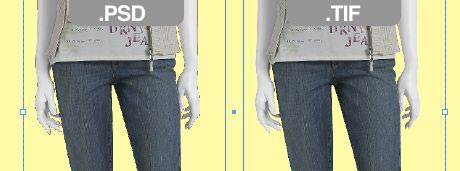
Photoshop CS3 and CS2 both let you easily extract images that are embedded in PDF documents. My friends over at CreativeTechs have the simple solution.

PDF font subsetting explained

I'm often asked about Font Subsetting when exporting and creating PDF files using Distiller or directly from InDesign, so I thought I would post this explanation of what Font Subsetting is.

When generating a PDF, it is possible to include only those characters in a font that were used in the document. This partial font is called a “Font Subset”. You adjust font subsetting in either the Acrobat Distiller job options or InDesign's export dialog under “Subset fonts below X%”. The percent represents how much of the font is used in your document before it gets embedded in the PDF file. So a setting of 100% would mean that the entire font would be subsetted in the PDF file, while a setting of 5% would mean that you would have to use nearly all the characters available before the font would be subsetted.

The primary advantages of subsetting fonts are that it not only reduces the PDF file size, but RIP's (raster image processors) are forced to use the subset font even if the system has the full font available. Your PDF is slightly larger than other PDF files, but is also less likely to have problems with substituted fonts when output.

Disadvantages of font subsetting are that it prevents your output provider from making edits to the PDF file if necessary, while still maintaining font integrity.

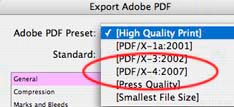
PDF/X-4One of the many new additions to InDesign CS3 is the PDF/X-4 format in the export dialog box. There are several PDF formats, each with their own specific uses in the industry, and the latest version has it's particular strong points as well.


Steve Werner at InDesignSecrets.com has a great introductory article explaining the new PDF/X-4 format that is quite informative.

Create a searchable PDF from your scanner

In this episode of the Creative Suite Video Podcast, we'll not only see how to create a PDF from a flatbed scanner, but we'll also make the text searchable using Acrobat's OCR capabilities while maintaining 100% readability and accuracy.

Create better PDFs by understanding the formats

Acrobat PDFAcrobat PDFs were created a long time ago with the idea of creating a file format that was universally readable by any operating system with a PDF reader, regardless of whether or not you had the original program and fonts that created the PDF file. The idea was fantastic.

Over time though, different versions of the PDF file format started popping up in Adobe programs, allowing great control over the creation of the PDF, as well as the ability to edit the PDF files – something not originally intended for the format.

Today we have no less than five main versions of the PDF format to choose from, and even more standards when creating PDF files. It’s just gotten too confusing, in my opinion.

Nevertheless, PDF is here to stay, and you had better know how to work with them if you want a smooth workflow and less problems when sending PDF files of your ads and collateral to publications and printers.

Below is a very brief breakdown of the various PDF formats and standards used in the design and printing industry.

Acrobat 8 (PDF 1.7)
The baby of the bunch. Acrobat 8 just started shipping a short while ago, so not many applications can create an Acrobat 8 PDF, and even less can use them. Avoid this format for a while.

Acrobat 7 (PDF 1.6)
Not much changed from version 6 in this release. Some techno-geekery and that’s about it. I would guess that most people completely skipped this release, and it’s probably best if you skip using this format as well.

Acrobat 6 (PDF 1.5)
This is probably the version you should use for most screen resolution proofs, internal PDFs and for output with commercial printers. Lots of people have this version and it’s a proven winner. This version introduced layers to the PDF format and allows for JPEG2000 compression, a new JPEG format that uses better compression methods. This version also properly supports transparency in the PDF file.

Acrobat 5 (PDF 1.4)
This was the first version of PDF to support transparency and metadata support. While this version is also the first version (that I’m aware of) that is not a “flattened” format. There’s not much reason to use this version when creating a PDF file, as most commercial printers have moved on to newer versions.

Acrobat 4 (PDF 1.3)
This is the most widely accepted version of a PDF. Virtually everyone can open a PDF 1.3 file. It predates transparency and unflattened formats, but includes support for CMYK and Spot colors, so it’s probably the “safest” format to use when sending PDF files to smaller printers and publications for output since it offers the least amount of things to go wrong.

Acrobat also offers pre-defined output settings called “standards” which aid you in creating better PDFs. These are not special formats, just ways of creating normal PDFs for specific uses.

PDF/X-1a
This is the absolute best way to send a PDF for output, in my opinion. It is the standard used by the vast majority of the printing industry. By requiring the PDF to have all fonts embedded, any transparency flattened, and the colorspace to be either CMYK or Spot color, the PDF/X-1a format (which is a 1.3 version file) is all but guaranteed to output correctly.

PDF/X-2
Not a viable format except in special cases. This version of PDF was designed for specific workflows such as OPI. If you aren’t sure what that is, then you shouldn’t use this format.

PDF/X-3
PDF/X-3 is basically the same as PDF/X-1a except that it allows RGB data in the files. The advantage to this is that it gives you the ability to maintain the most amount of color in your images, and the printer the most control over the file when they convert it to CMYK - resulting in better color conversion. Unfortunately, most printers don’t want that responsibility or flat-out don’t support it. It’s probably best to avoid this format standard as well.

PDF/A
The “A” probably short for “archive.” This standard was basically created to “future proof” your current PDFs. Files saved with this standard are more likely to work perfectly 10 years from now with any application that can read a PDF. This format is perfect for archiving old work when you know you aren't going to change it or output it commercially.

In closing, I'll leave you with a bit of advice. To keep things simple, use PDF/X-1a for ads. This is the most universally accepted method and will yield the best results when you're uncertain as to the capabilities and experience of the publication or printer who will be outputting the file. Use Acrobat 6 (PDF 1.5) when creating your PDFs when you're confident that the printer knows what they're doing and their RIP supports it properly. It allows for greater flexibility on their end. If you're in doubt, fall back to the PDF/X-1a format.

Changing the font size for PDF comments

To set the font and size of the text in an Acrobat Comment, choose Edit > Preferences > General (or hit Command + K) to open the Preferences dialog box. Once the dialog box is open, select Commenting from the list on the left. Choose the font size you wish from the pop-up menus.

You can also set the opacity of the note boxes and the behavior of various types of comments while you're there.

Acrobat 7's Organizer feature

Acrobat Organizer

Acrobat 7 has a useful, if not disturbing, feature: the Organizer.

Choose File> Organizer and you’ll see a list of every PDF you have viewed in Acrobat or on a Web site, with previews (except for those from the Web). You can double-click any PDF to open it — if the PDF is on a Web site, it will take you there.

Its comprehensive search engine lets you find files by almost any criteria. You can sort by date, file size, number of pages, name, date modified, date last opened, and more. You can browse through PDFs in any folder on any available volume, and sort them.

When you find a PDF you like, you can print it, email it, send it for review, or even create a new PDF containing any combination of PDFs. You can also save sets of search criteria as Collections for easy retrieval later.

Tip via DesignTools Monthly

How to create PDF/X files

Acrobat PDFGet answers to questions about creating PDF/X-compliant files in Acrobat Professional.

Click here for a PDF file courtesy of Adobe. The file was created back at Acrobat version 6, but the information contained in the PDF still applies to today's workflow.

Creating digital signatures in Adobe Acrobat

PDF digital signaturesA digital signature identifies the person signing a document as much as a conventional handwritten signature does. Unlike conventional signatures, however, a digital signature also stores information about the person signing the document. Signatures help prevent unwanted changes to a PDF document, which is reason enough why you should be interested in the digital signature capabilities of Acrobat 7.

IT Enquirer has a brief but informative tutorial on creating and using digital signatures in Adobe Acrobat.

Quicker PDF exporting in InDesign

If you're always in a rush, you can bypass the PDF Export Options dialog box in Adobe InDesign by holding down the Shift key when choosing a setting from File>PDF Export Presets, just name the file. This is perfect when you have a lot of InDesign files to export with the same settings.

Convert images to gray in a PDF

Did you know you can convert all your images in a PDF file to grayscale AFTER the PDF was already created in RGB or CMYK mode? All you have to do is change the Colorspace area in the Conversion section to Grayscale when you're using the Export All Images command.

Create global PDF settings in Adobe apps

Did you know that if you customize your PDF creation settings in Acrobat Distiller that those settings are available automatically in ALL Adobe applications? Adobe has made PDF creation even simpler!