Copy multiple Photoshop layers into a new document without…
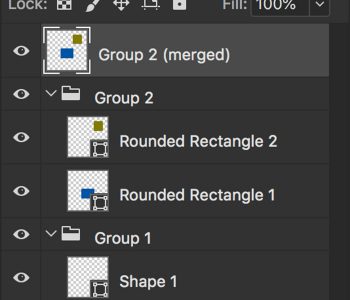
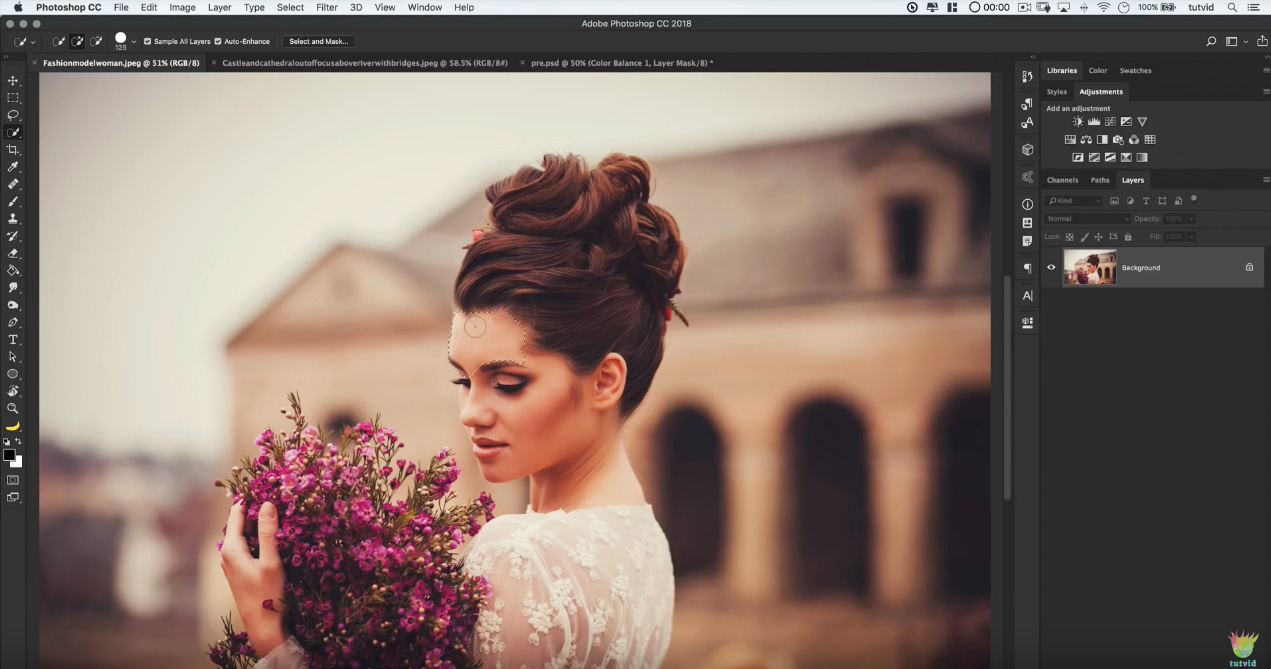
 If you’re working on a multi-layer document in Photoshop and you want to copy a portion of the image into a new document, there’s no need to flatten the image first. You can easily do it by making a selection around the area you want to copy and select Edit>Copy Merged from the menu, or hit Command + Shift + C. This will copy all the artwork inside the selection area, regardless of what layer it is on. Then you can paste it into another Photoshop document. Just be aware that when you paste the artwork, it will be a flattened piece of artwork.
1 COMMENT
[…] Reference: https://www.thegraphicmac.com/copy-multiple-photoshop-layers-new-document-without-flattening […]
Comments are closed.